

Inexpensive Act CRM Technical Support: Orange Care Plans

by Tony Holowitz | Aug 1, 2022 | ACT CRM Software Tips and Tricks

Act CRM Support

A client contacted me this morning because he wanted help setting up the free mobile app called Act Companion.  I hate these requests.

Why?

On the surface this seems like a rather simple request.  However, my experience has been that it can get very time-consuming as you try to figure out usernames and passwords and proper configuration settings.  How many of us have dealt with this kind of thing just to find out that a simple letter in a username was not capitalized and it would not work. 

Yes, I know you have been there before.

These moments are time consuming and frustrating and I hate them.  Frankly, it makes me look bad and at the rates I charge my time is expensive. Is there a better solution for situations like this?  Yes.  It is called Orange Care (OC).  Situations like this are why I often recommend purchasing Orange Care from Keystroke.

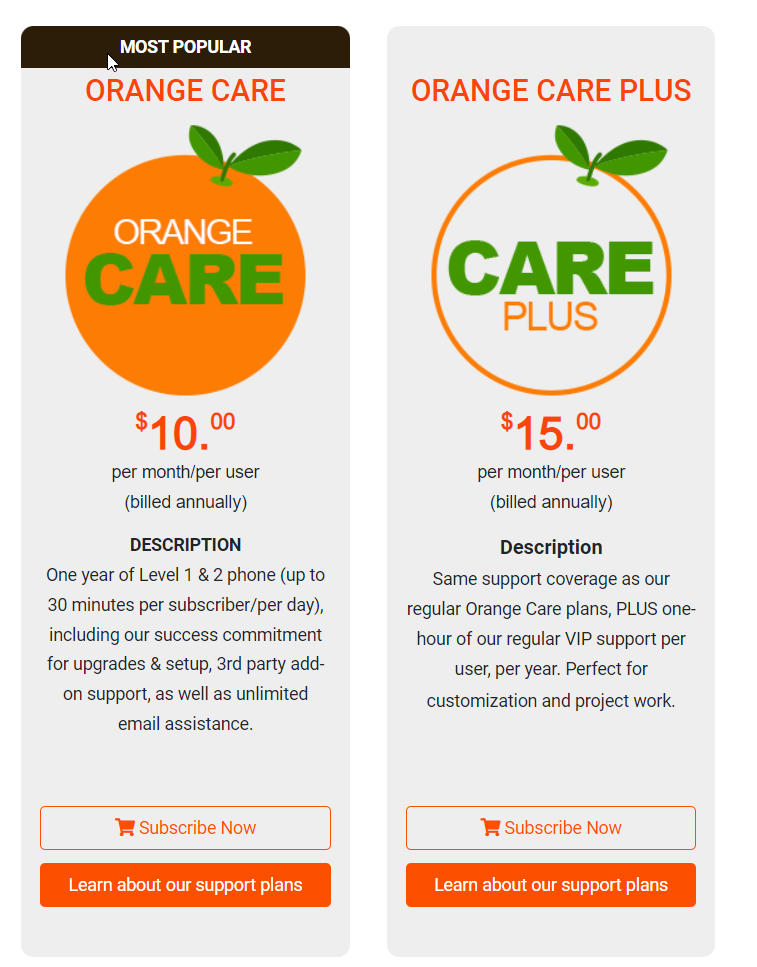
I am a partner at Keystroke and one of the services they offer is Orange Care.  It is a support plan for $120 a year per user, and you receive up to 30 minutes of support every single day for one year.  They also offer VIP programs for situations that are more of a one-to-one situation.  After you pay for your subscription to orange care you will send an email to service@kqc.ca and they will assign your ticket to a technician.  That technician will reach back to you by appointment to work on your technical matter.  Because they have access to your account information and settings, they can typically solve these issues quicker than I can.

The beauty is this:

After this support session you still have a whole year of support available to you.  If you are not sure what to do simply reach out to me and I will give you my opinion on the best way to proceed.  Where I can help you best is when it comes down to thinking your situation through based on what your goals are.  Sometimes, I recommend Orange Care and sometimes I recommend that you work directly with me.  Sometimes I recommend both.
Tony’s Video Text Transcript

365 Act CRM Tips and Tricks

Speaker 1 (00:00):

Hi ladies and gentlemen, this is Tony Holowitz. And I wanna thank you for being here for this tutorial. A client of mine whose first name is Brenda reached out to me today, because she was having an issue with act synchronizing. So one of the things you can do when you have what’s called a remote database is you can set a scheduler to have act automatically synchronized on a regular consistent basis. She had reached out because she didn’t think act was synchronizing the proper way. So let me show you what I’m going to look at to show her how to make this work properly. So the first thing you wanna be aware of this is just a sample database and this is not a remote database, but I’m gonna go up and click on tools. And I want you to go down to where it says act scheduler.

Speaker 1 (00:51):

And if you’ve never done this before, click on that. Now, if nothing happens, that typically means the scheduler is in the system tray and it is running. So I’m gonna come down to the bottom, right? I’m gonna click on this up arrow. And this little item right here is what’s called the act scheduler. I’m gonna click on that, actually double click on it and bring it up on the screen. So at this point, what she should see is the name of her database. And if she’s not sure what it is, she can look up in the top right hand corner. It’s the remote database. If she’s in the right database, which she should be. If I had worked on it, typically she would see here a couple options. One of those options being that synchronization’s gonna occur on a regular basis. Now on this particular computer, I have one database that is a remote database.

Speaker 1 (01:45):

I have other databases, but they’re not remote databases. Again, some of this stuff, typically when you set this up or if I’ve set this up for you, you don’t really have to know all this information. Just trust that some of these things have been done, but I turned it off. So I can go back in and show you what happens. I’m gonna click on, create a task. I’m gonna navigate to where the database is that I want to work on. Bear with me one a second while I go down to it, here we go. Right? So at this point, you’re going to want to type in your username and password

Speaker 1 (02:21):

And click next. If you have the right username and password, it will get you to this area. If you don’t, you have to go back and work on that. I’m gonna click on the dropdown. And at this point there’s database synchronization, remote database only. I’m gonna click on that. I’m gonna click next. I’m gonna click on hourly. I’m gonna do it every one hour from on Monday and Friday from 8:00 AM to 5:00 PM. Now I can change this. I’m gonna actually, let’s go down to six and make this 6:00 PM. So we’ll run every hour on the hour.

Speaker 1 (02:59):

During those times, I’m gonna click next. I’m not gonna set up email notification that doesn’t work that great. And I’m gonna click finish. And now you’ll see that I’ve scheduled the synchronization. So this is the key. There’s two reasons generally why the synchronization stops working one. It wasn’t set up two. Sometimes what my experience has been is that a Microsoft update or some kind of update got on your computer and it created a situation where this did not start up. A lot of times just restarting your computer. We’ll bring it back online. But again, I’m gonna click exit. And if you wanna make sure that it’s running, come down to the task bar, look at the act schedule icon right here, double click on it, bring it up and make sure it’s there. If you want to go in and edit it, just double click on it and go inside and just run through the steps again and just make sure they’re all exactly the way you want. ’em ladies and gentlemen, my name is Tony Holowitz. Thank you very much for being here. Have a great day. Bye now.